For everyone
QR code tickets: how they work, from sale to scan
How does a QR code ticket work? What is inside the code, why a copy never gets in twice, and what you need at the door to scan tickets.
· 5 min read
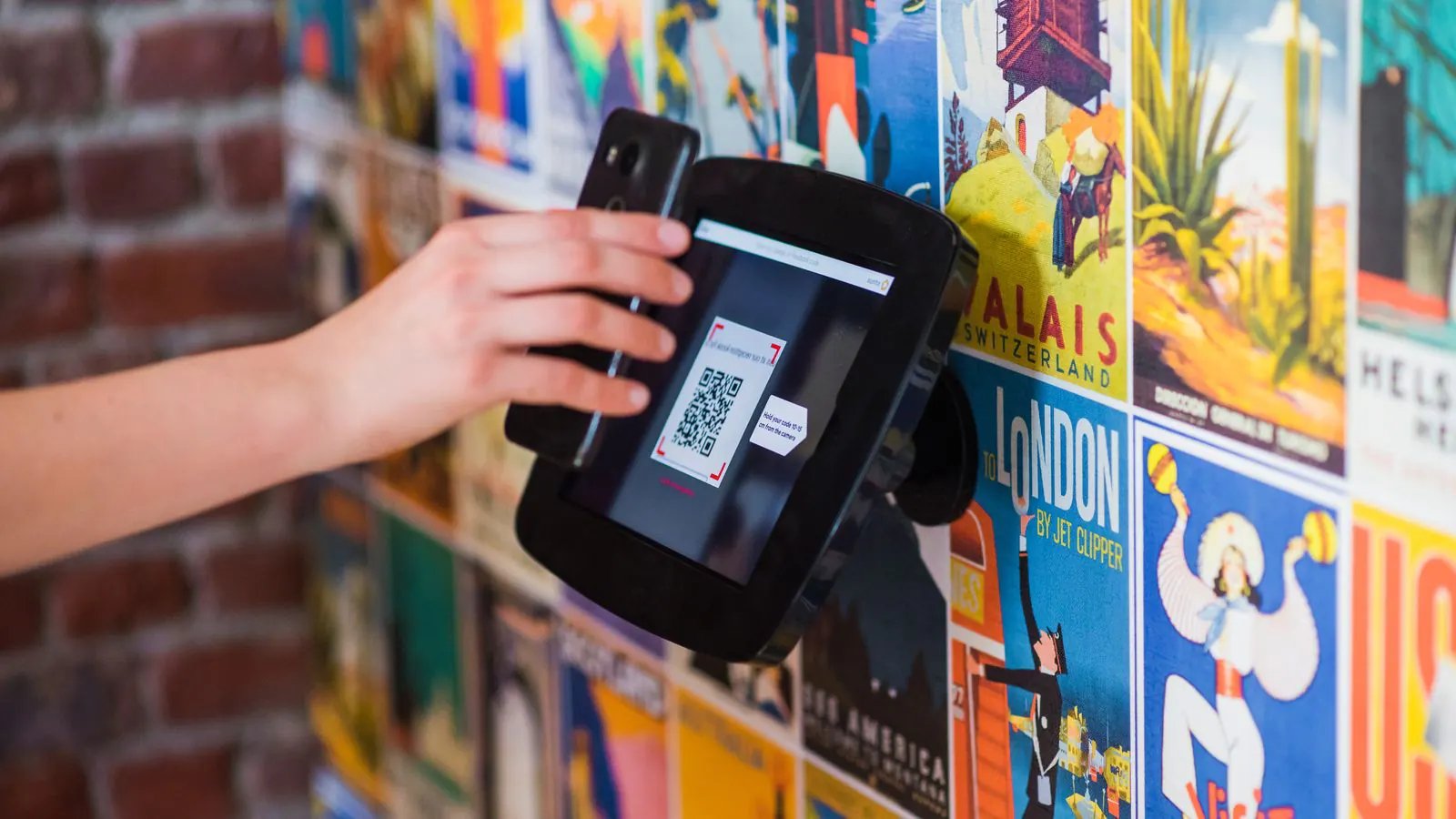
You are selling tickets online for the first time this year, and the questions arrive straight away. What is actually inside that QR code? Can someone forward a screenshot and get four people in? Does a printed ticket work as well as one on a phone? And what do you need at the door to scan? This article explains how a QR code ticket works, from the moment someone pays to the scan at your entrance.
What is inside the QR code on a ticket?
Less than you think. The code on a Passavo ticket holds a long, random string of characters with a short signature after it. No name, no address, no price and no date. The code is a reference to one sold ticket, nothing more.
That is deliberate. A code that carries data itself can be forged or edited. A code that is only a reference is worth something only when the system confirms the ticket exists and is still valid. Every ticket gets its own code, even when someone buys four in one order.
Can someone fake or copy a QR code ticket?
Two different questions, with two different answers.
Faking one doesn't work. The signature is calculated with a secret key that only lives on the server. Anyone who makes up a code sees Invalid at the door straight away: the signature doesn't match, and the code belongs to no sale at all.
Copying one is possible, but it gets you nothing. A screenshot of a ticket is the same code. Whoever shows it first gets in; whoever shows the same code after that gets a message that the ticket has already been scanned. Even when two entrances scan the same code at the same moment, the system lets exactly one through. So feel free to tell your visitors not to post their ticket in a group chat: it is the friend who arrives last who ends up waiting at the door.
Printed, in the email or in the wallet: the same code
Anyone who buys a ticket receives a confirmation email with the QR codes in the email itself, so they don't have to open an attachment at the door. A PDF is attached as well, for those who prefer to print. With one button they add the ticket as a wallet pass on their iPhone or Android phone.
Each time it is the same code in different packaging. Someone who prints their ticket and then also adds it to their wallet doesn't hold two valid places: the first scan counts. If you sell at the desk, you print the ticket on a receipt printer, as explained in printing tickets at the desk.
Printing tickets or posters with a code yourself? Don't make the code too small, don't put it on top of a photo, and leave some white space around it. That makes more difference at the door than a more expensive device.
What the scanning app sees at the door
At the door you scan with an ordinary phone or tablet: an iPhone or iPad from iOS 15.5, or an Android device from Android 6.0. The scanning app reads the code and tells you in under a second what is going on:
| Message | What it means |
|---|---|
| Valid | The ticket exists and is for today. The visitor can go in, and the ticket is now marked as used. |
| Warning | This ticket has already been scanned, with the time shown: earlier today, or at another entrance. |
| Invalid | The code is made up, doesn't belong to your organisation, or the ticket is for another day. |
A ticket you have cancelled or refunded no longer gives access, even if the buyer still has the email. The app shows no prices and no revenue: the volunteer at the door doesn't need to see that. If the network drops, the app keeps working with a list it downloads in advance. That list doesn't contain the codes themselves, only their fingerprints, so a lost device yields no usable tickets. How that works exactly is explained in scanning tickets without a network.
An example: a school fair with 240 tickets
The parents' association sells 240 tickets for the school fair: 180 online, 60 at the till on the night itself. There are two entrances, one at the playground and one at the sports hall. Two parents each get an invitation as a scanner, install the app on their own phone and log in with the organisation code.
At 7 pm the doors open. A father shows the ticket his daughter forwarded to him; she is already inside through the sports hall, so his phone shows Warning, with the time of the first scan. A mother has printed her ticket and also added it to her wallet; she scans once and she is in. Meanwhile, the dashboard shows how many of the 240 are already in and how many are still expected.
What you need to scan QR code tickets
- An event with tickets in your ticket shop.
- A phone or tablet with the scanning app for each entrance.
- A separate account with the Scanner role for each person at the door. That role can only scan: it can't see orders, change anything or issue refunds.
The steps are in the user guide: scanning app and scanning staff and wallet passes. Want to know exactly what the terms mean first? Read QR code ticket in the knowledge base.
The scanning app and wallet passes are included in every plan, including Free, with no charge per scan. How many devices you can connect at the same time depends on your plan; everything is on the pricing page.