Clubs and events
The ticket on your phone: how a wallet pass works
A ticket on your phone that your visitors find at the door in one tap, even without signal. What a wallet pass is and what it does for your club.
· 4 min read
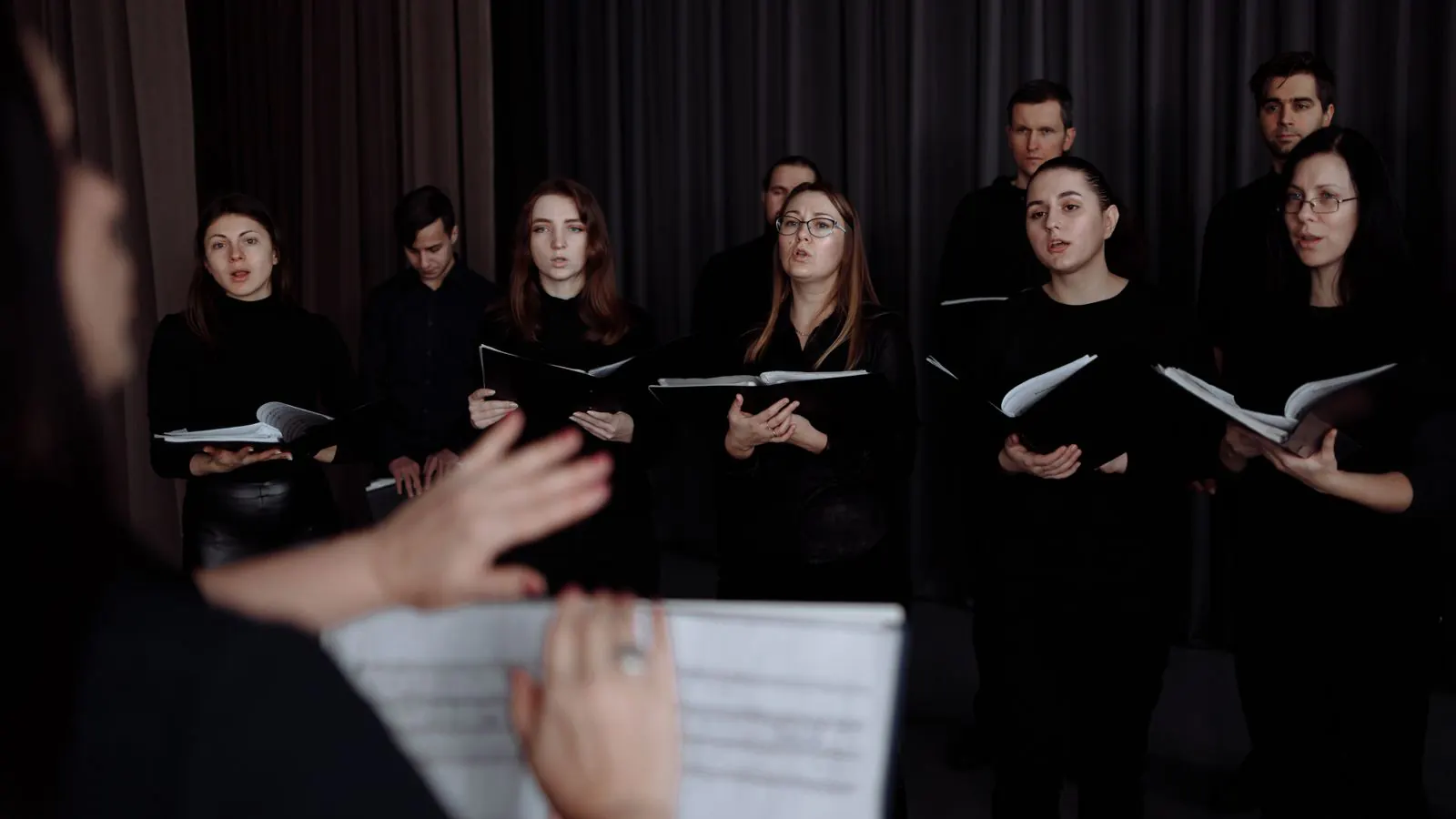
Saturday night, half past seven. The amateur theatre group is playing to an audience of 180, and the doors open. At the front of the queue, someone has been scrolling through their inbox for three minutes. "The ticket was in here somewhere." Forty people are waiting behind them. A ticket on your phone is convenient, but only if your visitor can find it. That is exactly what a wallet pass solves.
What is a wallet pass?
Every smartphone has a built-in wallet app: Wallet on an iPhone, Google Wallet on an Android phone. People keep their boarding passes, rail cards and loyalty cards in it. A wallet pass is simply one more card in there: in this case the ticket to your show, with your club's name on it.
You may still know the term Passbook: that's the old name of Apple Wallet.
Your visitor doesn't need to install anything. After the purchase, two buttons appear under every ticket, Add to Apple Wallet and Add to Google Wallet, both on the confirmation page and in the confirmation email. One tap, and the ticket is on their phone.
Why a pass works better than a PDF in an email
A PDF or an email with a QR code is an e-ticket too. At the door, though, you notice the difference:
| Wallet pass | PDF in an email |
|---|---|
| Always in the same place, next to the other cards | Somewhere among hundreds of emails |
| The screen brightens by itself when the QR code is shown | Your visitor turns up the brightness, or forgets to |
| Works without internet: the pass lives on the phone | An attachment that still has to load in a packed hall |
| Appears on the lock screen by itself shortly before the event | Your visitor has to remember the ticket |
The bright screen is the difference you see most. A dim, cracked screen scans badly; a pass that turns the brightness up by itself usually scans first time. And because the pass needs no signal, it pairs well with a scanning app that works offline: at the entrance to a marquee or a church hall, nobody has to wait for a connection.
The same code as on paper
The pass carries exactly the same QR code as the ticket in the email. For your volunteers at the door, nothing changes: the scanning app sees a valid ticket, whether it comes from a pass, a PDF or a printout. Anyone who shows the same ticket twice gets "duplicate" the second time.
If a ticket is cancelled or refunded, the pass stops working. A valid-looking QR code on the phone of someone who already got their money back won't get them in.
Not everyone wants to use their phone, and they don't have to. The ticket in the email and the printed page stay just as valid. The wallet pass is an extra option, not a requirement.
What your club gets out of it
For a club or society, the gain shows up mostly on the night itself:
- A faster queue. Someone who shows their ticket in one tap isn't searching for it, and neither are the forty people behind them.
- Fewer phone calls. The pass shows the address and, if you fill it in, the time the doors open. Those are the two questions you get most on the day.
- A channel for changes. The show starts half an hour late, or the car park is full? With Messages to visitors you send one short notice, and it shows up on your visitors' phones.
- Your name stays visible. The pass sits in your visitor's wallet for weeks, between their bank card and their train ticket, with your club's name on it.
What you set up, and what happens by itself
The wallet pass itself asks nothing of you: the buttons appear automatically for every valid ticket, including on the Free plan. To get more out of the pass, you fill in a few fields:
- a portrait photo per event: on a recent iPhone the ticket becomes a poster that fills almost the whole screen;
- the address of your venue with its coordinates: one click on Find coordinates, and your visitor gets a Directions button;
- the door time, in minutes before the start: your visitor then reads "doors open at 7:30 pm".
The poster, the buttons under the pass and messages to visitors come with the Start plan and above. What each plan includes is on the pricing page.
How to design the pass and where each field lives is explained step by step in the guide on wallet passes. If you first want to know how a mobile ticket works in general, see mobile ticket.
A tip for the day itself
Add one sentence to your confirmation email or your poster: "Add your ticket to your Wallet and you'll find it at the door straight away." Usually that's all the explanation people need. If someone still calls because they can't find their ticket, ask them to open the confirmation email and tap the button under the ticket. They get the same pass back, not a second one.