Clubs and events
Event access control: how to run the entrance
Event access control in practice: how many entrances you need, who stands where, what to do with a red screen and how to see who is already in.
· 5 min read

The doors of the party open at ten, and by a quarter past ten the queue stretches all the way to the car park. Not because the tickets are wrong, but because there is one phone at the door, someone can't find their email and the only volunteer who can look up orders is standing behind the bar. Good event access control is half technology and half organisation. This article is about that second half: how many entrances you need, who stands where, and how you see what happened at the door during and after the event.
How many entrances do you need?
Don't calculate with the number of tickets, but with the busiest hour. An example: the youth club sells four hundred tickets for its party. Experience says three quarters of the guests arrive between ten and eleven. That is three hundred people in one hour, or five per minute.
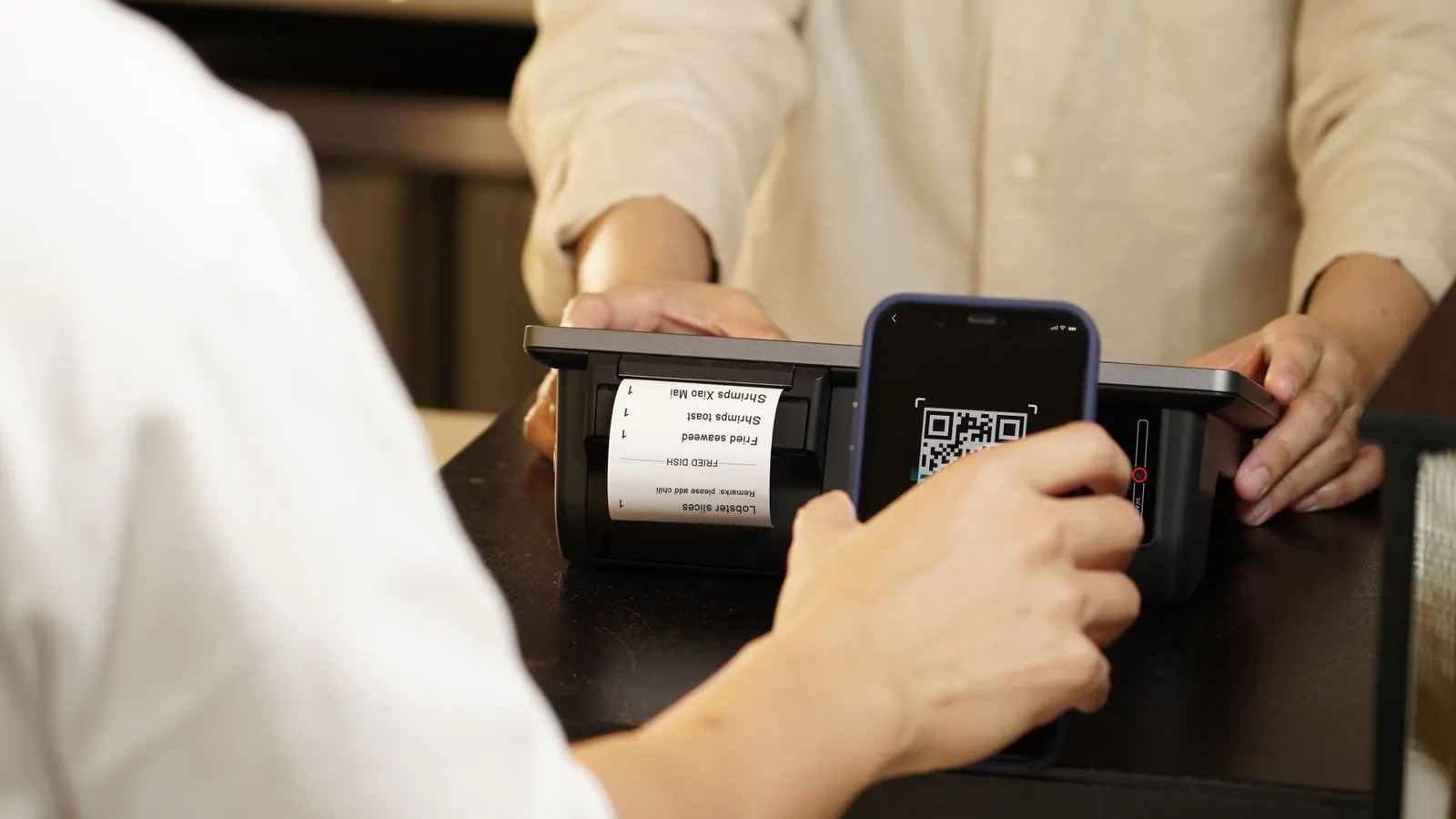
The scanning app answers in under a second, but a visitor also has to take out their phone, open the ticket and turn up the brightness. Count on around ten seconds per person, so six per minute per queue. On paper one queue is just enough; in reality people arrive in waves, five at once out of the same car. So set up two queues, each with its own device, and keep a third device ready for the peak or for a flat battery.
A fundraising dinner with two sittings or a quiz with registration per team is calmer: people arrive spread out, and one device at the door is usually enough.
Who stands where: three jobs at the door
The scanners. One per queue. In Passavo they get the Scanner role: scan tickets and see how many people are expected today, nothing more. No prices, no revenue, no orders. Invite each volunteer separately under Settings → Staff, with their own email address. Afterwards you see who scanned what, and you can take away one person's access without locking out the others.
The fixer. Someone a few metres beside the queue, with access to the back office — the Desk role is enough. They look up the order of anyone who has lost their ticket, resend the confirmation email or check a visitor in by name. That way the queue keeps moving while one case is being sorted out.
The till at the door, if you also sell on site. For anyone with the Desk role, the same app also becomes a counter point of sale on a tablet. How to run your presale and your sales at the door from one pool of places, you can read in selling tickets for your party.
Also give each device a name that matches its spot: "Left queue", "Right queue", "Side entrance". You do that under Point of sale → Devices. If something goes wrong, you immediately know which device it was.
What to say when the screen turns red
The hardest minute at the door has nothing to do with technology. The app shows Valid, Warning (this ticket has already been scanned, with the time) or Invalid. Agree in advance with your scanners what they do with those last two:
- Don't argue in the queue.
- Politely ask the person to step aside: "May I send you over to my colleague? Then the queue can keep moving."
- The fixer looks up the order and decides.
Anyone who really can't find their ticket doesn't have to stay outside: in the app you look them up by name on the Today tab and tap Check in. That counts as a normal scan. How the scanning app works, even without a network in a marquee or a cellar, is explained in scanning tickets without a network.
During the event: how many people are already in?
The back office dashboard has the At the door today tile, with three numbers: Expected (all tickets valid today), Already in (how many of those have been scanned, with the percentage) and Still expected. A scanner sees that tile too. If you work with time slots, it shows per slot how many places were sold and how many have been scanned.
That answers the questions that keep coming back all evening. Can the second scanner go to the bar? Look at Still expected. Does the kitchen need to wait for the second sitting? Check how much of that sitting is already in.
After the event: learn from your own numbers
On the dashboard, the Visitors per hour chart shows at what time the tickets were scanned. If you work with time slots, a second line sits next to it: what was planned. If the two are an hour apart, everyone consistently arrives later than you thought, and next year you make your first slot wider.
Without time slots, that scanned line is still worth its weight in gold: it shows your real peak hour. Next year you plan your queues on that, instead of on a hunch. What each tile means, you can read in reading your dashboard.
Checklist before the doors open
- Every device is charged, logged in and has a clear name.
- The manifest has been refreshed on every device shortly before opening.
- Every scanner has their own account and knows what to say at "Invalid".
- The fixer stands next to the queue and can open the back office.
- Ten metres before the door there is a sign saying "Have your ticket ready".
- A spare device is ready.
All the steps to set up a device and invite scanners are in the manual under scanning app and scanning staff.
What it costs
The scanning app and the dashboard are part of every plan, the free one included, with no amount per scan. How many devices you can connect at the same time depends on your plan. How the access control of Passavo works, you can see on the product page; the plans are on the pricing page.