

Creating a Mollie account, step by step
Create a Mollie account for your association or organisation: what to have ready, how the check works, which payment methods to switch on and how to connect.
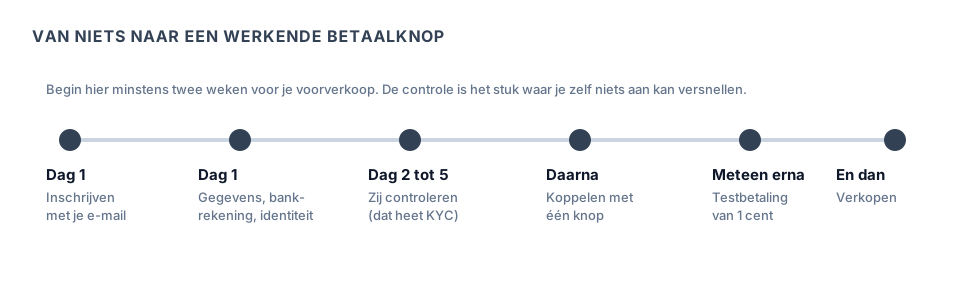
Mollie is a Dutch payments company that collects payments for web shops, associations and self-employed people. This article walks with you from an empty screen to an approved account you can sell with.
You have nothing to install. Everything happens in your browser, at mollie.com. Allow twenty minutes of typing and then one to five working days waiting for their check.
Note: this article describes Mollie's screens, not Passavo's. Mollie changes its screens from time to time. If a button reads differently on your screen, look for the button that does the same thing — the order of the steps stays the same.
In short: creating a Mollie account in six steps
- Have ready: your company number, your organisation's IBAN, your identity card and the address of your ticket shop.
- Sign up at mollie.com with an email address belonging to the organisation.
- Fill in your organisation, your bank account and your identity.
- Create a profile with the name your visitor recognises.
- Switch on your payment methods: Bancontact, iDEAL, card.
- Paste your API key into Passavo as soon as Mollie approves you, usually after one to five working days. Until then you can already test with your Test API key.
Each step is explained below, together with the pitfalls.
What you then do with Mollie in Passavo
Once the key is in place, your visitors pay in your ticket shop with the methods you switched on at Mollie — Bancontact, iDEAL, card and possibly PayPal. The money goes to your own Mollie account and from there to your bank account; Passavo keeps none of it and charges no cost per ticket. If the counter till is in your plan, it also sends the amount to a payment terminal you registered in your Mollie account. See The counter till.
What you need beforehand
Lay this out before you start. Having to stop halfway to go and find a document is the reason this takes people days rather than half an hour.
- Your company number. In Belgium your KBO number (ten digits, starting with 0 or 1), in the Netherlands your KvK number. A non-profit has one too. You find it in your statutes, on an invoice, or by looking your name up in the Crossroads Bank for Enterprises.
- The official name of your organisation, exactly as it is registered. Not "De Hoevefeesten" if it says "Hoevefeesten vzw".
- The official address of your organisation.
- The IBAN of a bank account in the name of your organisation.
- Your identity card or passport, as a photo or scan.
- An email address and a mobile number you can get at. You will receive codes on them.
- The address of your ticket shop. You find that in Passavo at the bottom
of Settings → Organisation, in the Sharing your shop block; it has
the form
https://{domein}/nl/s/jouw-organisatiecode. - With a non-profit: who the directors are, with their date of birth and address.
If you have no company number, you cannot open an account with Mollie. In that case first read What if I have no company number? in What is a payment provider?
Step 1 — Signing up
- Go to mollie.com.
- Click Sign up or Create an account at the top right. You now see a form with a few fields.
- Fill in your email address and choose a password. Use the
organisation's address (for example
treasurer@yourassociation.be) and not one volunteer's private address. In three years' time that volunteer may be gone, and somebody else will still have to be able to reach that account. - You receive an email with a link to confirm your address. Click it. Not arrived? Look in your junk mail and wait a few minutes.
You are now in the Mollie dashboard. That is your own environment at Mollie, separate from Passavo. At the top there is usually a bar saying your account has not been verified yet. That is correct — we are going to sort that out now.
Step 2 — Filling in your organisation
Mollie now asks who you are. This is the part where people make mistakes, so read it calmly.
| What they ask | What you fill in |
|---|---|
| Country | The country your organisation is registered in |
| Legal form | Non-profit, sole trader, bv … Choose what your statutes say |
| Company name | Exactly as it appears in the KBO or the KvK |
| Company number | Your KBO or KvK number |
| Address | The official address, not the address of the hall |
| VAT number | If you have one, fill it in. Not VAT-registered? Leave it empty |
| Sector or activity | Choose something like entertainment, events or culture |
| Website | The address of your ticket shop |
Note: if your company name differs from what is in the official register, your application ends up in the manual check and you lose days. Better to copy the name than to type it from memory.
With a non-profit Mollie also asks who the directors are and who the ultimate beneficial owners are. That last part sounds weightier than it is: with a not-for-profit association those are in practice the directors.
Step 3 — Your bank account
Fill in the IBAN of the account you want to be paid out to.
That account has to be in the name of the same organisation. Mollie checks that, and a difference in name is the most common reason why a payout gets stuck.
Mollie confirms the account in one of two ways:
- With a test amount. They transfer a small amount with a code in the reference; you type that code over. Allow two to three working days for that amount to reach your account.
- With a verification via your bank, where that is offered in your country. That happens straight away.
Step 4 — Proving your identity
This is called KYC, know your customer. A payments company is not legally allowed to collect money for you without knowing who you are — the same reason your bank wants to see your identity card.
You upload proof of identity for the person managing the account, and often for the other directors as well. Sometimes Mollie asks for a short video selfie alongside it.
Five things that make the check go smoothly:
- Photograph your card on a dark, plain surface, flat, straight from above.
- Make sure all four corners are in shot.
- No flash: the glare makes the details unreadable.
- Use a document that is still valid.
- The name on the document has to match the name of the director you have given.
Step 5 — Creating a profile
A profile at Mollie is the shop you collect payments for. Anyone with one ticket shop needs one profile.
Every API key belongs to one profile: Passavo uses the profile of the key you paste. If you already have one for your web shop and want to keep your ticket sales separate, create a second profile and later copy the key of that profile.
In the Mollie dashboard go to the profiles (often under Settings or Profiles) and create one:
| Field | What you fill in |
|---|---|
| Name | The name your visitor sees on their bank statement. Put the name they recognise here, not an abbreviation |
| Website | The address of your ticket shop |
| Contact email | The address your visitors reach you at |
| Category | Tickets, events or culture |
Note: what you put under Name is what appears on your visitor's bank statement. An unrecognisable name there earns you phone calls from people who think they have been swindled.
Step 6 — Switching on your payment methods
In the Mollie dashboard there is an overview of payment methods. Tick what you want to accept. For a Belgian association that is usually:
- Bancontact — your Belgian visitors;
- iDEAL — your Dutch visitors;
- Card (Visa and Mastercard) — everybody, tourists included;
- possibly PayPal.
Some methods are only activated after your approval, and the first time you switch a method on there may be a short check involved.
This is the step that is most often forgotten. A connected provider with Bancontact not switched on shows no Bancontact in your ticket shop. Passavo passes no list of methods along: your visitor sees exactly what you have ticked here.
Step 7 — Waiting, and carrying on in the meantime
Now it is up to Mollie. Allow one to five working days. You receive an email when your account has been verified.
In the meantime you can perfectly well carry on in Passavo:
- creating your products and prices — Products and prices;
- generating your time slots — Time slots;
- filling in your house style and your texts;
- already running your free registrations.
What is more, you can connect Mollie before your account is approved:
paste your Test API key (test_…). You get it straight away, even without
approval. The payment runs from beginning to end, but no real money goes back
and forth. That is an excellent way to check the whole chain, with two
caveats:
- with a Test API key every payment in your ticket shop is a test payment, including a visitor's. Such an order is marked TEST and its tickets do not grant entry: the scanning app refuses them. So don't share your shop yet;
- you go live yourself: as soon as Mollie approves your account, paste your Live API key in Settings → Payments and click Replace key.
Whether you are in test mode, you see in Settings → Payments: the Mollie block then shows the orange badge Test mode. As soon as your Live API key is saved, it disappears.
See Connecting your payment provider.
Step 8 — Connecting to Passavo
As soon as your account is approved, you connect Mollie in two steps:
- In your Mollie dashboard, under Developers → API keys, copy your
Live API key (it starts with
live_). - Paste it into Passavo under Settings → Payments, in the Mollie block, and click Save key.
Passavo checks the key with Mollie straight away and then shows the name of your profile and the payment methods that are switched on. Mollie: paste your key, done. The full step-by-step guide is in Connecting your payment provider.
Commonly made mistakes
Giving a private account. The account has to be in the name of the organisation. If you do it anyway, your payout gets stuck.
A volunteer's private address as the email address. Use an address belonging to the organisation, so that the account survives a change of committee.
An unrecognisable profile name. See step 5.
Thinking you are finished once you have filled it all in. You are finished when Mollie confirms that your account has been verified and your methods are switched on.
Leaving the Test API key in place. If you connected with your Test API key before the approval, paste your Live API key after the approval. Otherwise your ticket shop still does not collect real money.
Starting in the week of the advance sale. Start two weeks earlier.
What if …
What if Mollie asks for extra documents?
That is normal, certainly with a non-profit. They then ask for your statutes or an extract from the official gazette, for example. Send what they ask for as quickly as possible: for as long as they are waiting for you, the clock stands still.
What if my application is refused?
Ask them why. In most cases it is about a detail that does not match (name, address, account) and it is solved with a single correction. If it really does not work, Stripe is the alternative.
What if I already have a Mollie account for my web shop?
Then you use that one. You do not have to open a second account. If you want to see your ticket sales separately, create a second profile and paste the API key of that profile; otherwise simply use the key of your existing profile. You recognise your ticket payments in your Mollie dashboard by the description with the order number.
What if I have lost my password?
You restore that at Mollie itself, with Forgotten password. We cannot get at it: it is your account with them.
What if the director changes?
Update the directors in your Mollie dashboard. An account still in the name of the previous chair causes trouble at the next check — and it will come, because providers repeat their checks periodically.
Frequently asked questions
Does a Mollie account cost anything? According to their price list there is no set-up cost and no monthly amount for online payments. You pay per successful payment. The current rates are on Mollie's own pricing page. See also Which payment provider do you choose?
Can I sell before the approval comes through? Free registrations: yes, always. Paid tickets with real money: only after approval, with your Live API key. Test payments with your Test API key are possible.
Who has to open the account? Somebody who may represent the organisation — with a non-profit, a director.
Do you see my Mollie password? No. You paste an API key, not a password. That key is stored encrypted on our side and is used to start and refund payments for you. With Disconnect you erase it on our side; in your Mollie dashboard you can also renew it.
Where do I find Mollie's support? For your account, the check or your payouts, Mollie itself will help you, via help.mollie.com. For the connection to Passavo, write to us; see Support.
Do I have to have a web shop? No. Your ticket shop at Passavo is enough; you fill that address in as the website.
Updated on 2026-09-25
Read next
-
Payments and payouts
Which payment provider do you choose?
Mollie, Stripe and Bancontact Pro side by side — which payment methods, where to find thei...
-
Payments and payouts
Creating a Stripe account, step by step
Create a Stripe account in twenty minutes: what to prepare, how to activate it, switch on...
-
Payments and payouts
What is a payment provider, and why do you need one?
Explained for anyone who has never received money online — who collects it, where it goes,...
Still stuck? Write to us at support@passavo.eu