

What is an API, and do I need one?
Explained for anyone who has never built an integration — what sits behind those three letters, when it saves you work, and when clicking is faster.
You come across those three letters in a quote from your web builder, or in the feature list of your accounting package: API. This article explains what it is, without you needing to know how to program.
The short answer
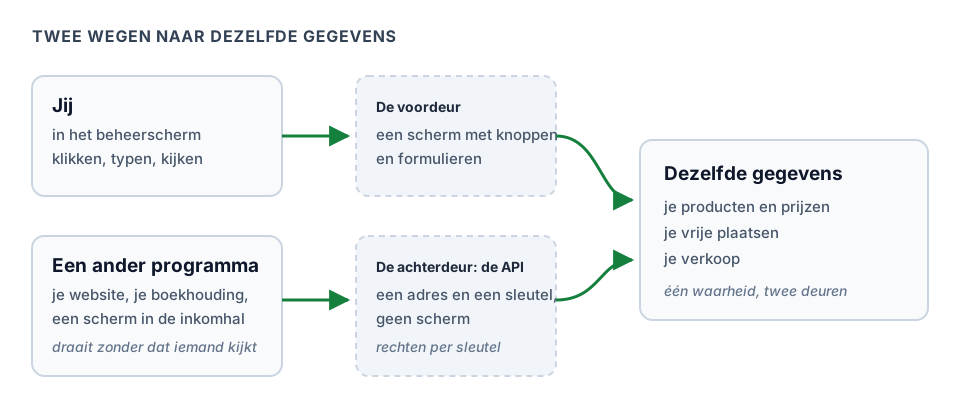
An API is a door at the back of your account.
Where you click in your admin screen to see how many places are still free, a different program can ask exactly the same thing through that door — with nobody sitting at a screen. Behind both doors sits the same data: your products, your prices, your availability, your sales.
The difference is who comes in. Through the front door comes a human with a mouse. Through the back door comes a program with a key.
When do you need one?
Only when you want something the admin screen does not do. For example:
- show on your own website which tours still have room this week, in your own design, with figures that are correct at that very moment;
- let your accountant help themselves, so they fetch last month’s revenue instead of getting an export from you every month;
- a screen in the entrance hall showing which time slot is about to start;
- selling from a program you already use, without first having to log into the admin screen.
And when do you not need one? When you can click it. Building an integration costs time and upkeep; exporting a list twice a month costs two minutes. Only pick the first once the second starts getting in the way.
Note: you do not have to build this yourself. Whoever does — your web builder, the supplier of your accounting package, someone on your committee who can program — needs only two things from you: the address and a key. You will find both in your admin screen.
What exactly you hand over
Open Settings → API access (that screen is there for the owner of the organisation). On the Keys tab there are three things to hand over:
- The address. One line of text. That is where the other program talks to.
- The technical description, the link ending in
openapi.json. With it a developer sees at a glance everything that is possible: which data exists, how you ask for it, what comes back. - A key, which you create yourself. See Creating an API key.
They need nothing more, and you should give nothing more — certainly not your password.
What a key may and may not do
When creating it you tick what the key is allowed to do. That is not a formality:
- Read — fetch everything, change nothing. This is what most integrations need. Note that "everything" includes your orders and your buyers, with their name and email address.
- Write — create orders, have them paid, cancel and refund them, request an invoice, void and resend tickets, check people in, and issue, redeem or renew gift vouchers and season passes.
- Webhooks — say where messages may be sent. See Webhooks.
- Paid externally — mark an order as paid without a payment provider being involved (bank transfer, cash). Only give this to a till or accounting system you manage yourself: whoever may do this can issue tickets without any money coming in.
Give every integration its own key with only what it needs. Then you can revoke one without breaking the rest, and you can see in the list which one is still in use.
A key is not, by the way, a password that opens your account: it only grants what is ticked on it, and it belongs to one organisation. Even if it is lying around somewhere, nobody can fetch anybody else’s data with it.
Try it safely first
Next to a normal key you can create a test key. It reads exactly the same data. If it may also write, it only creates test orders: they never go to your payment provider, do not count towards your revenue and are cleared away automatically after 24 hours. A test key cannot set up webhooks.
That exists for precisely this moment — someone trying things out who is not yet sure what they are doing. Let your web builder start with a test key and only switch over at the end.
One thing to know: a test order still holds a real place (until it is cleared away), and the confirmation email really goes out. So have your web builder test with a product or time slot you create for that purpose.
And if it goes wrong?
Revoke the key. Click Revoke in the list, and from that moment it no longer works. The integration stops, your data stays. There is no situation in which a key can do something you cannot stop with one click.
What it costs
The API is part of a larger plan. On a smaller one, API access is not in your menu. If you do end up on that screen, you see an explanation, which plan the API is part of, and a To Subscription button — no keys. What sits in which plan is on the pricing page of Passavo.
Read on
- Creating an API key — the screen itself, step by step.
- Webhooks — let your website know something has been sold, without it having to keep asking.
- Setting up webhooks — the screen itself, step by step.
- The developer portal — for whoever builds the integration.
Updated on 2026-09-24
Read next
-
Integrations
Creating an API key
Let your own website or your bookkeeping fetch your data, while you stay in control of wha...
-
Integrations
Webhooks: let your website know a ticket has been sold
A webhook is a short message we send to your system the moment something happens — instead...
-
Integrations
Setting up webhooks
Let us notify your own server the moment something happens, instead of having to ask for i...
Still stuck? Write to us at support@passavo.eu