

Webhooks: let your website know a ticket has been sold
A webhook is a short message we send to your system the moment something happens — instead of your system having to keep asking.
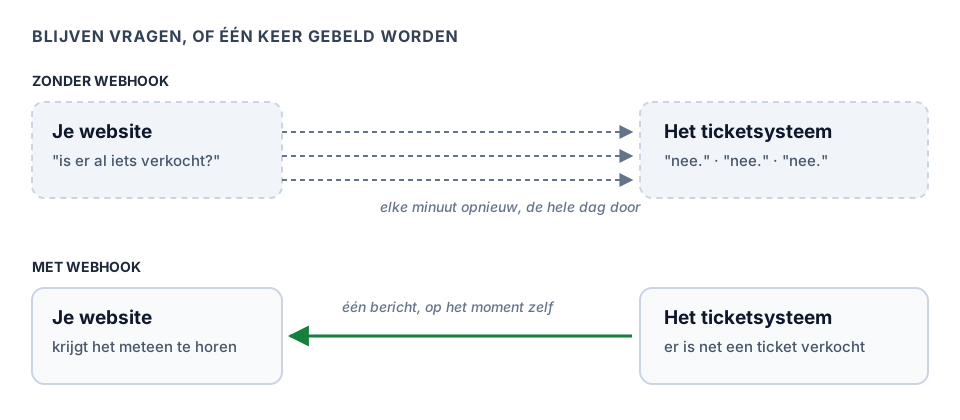
Say you want the counter on your own website to move the moment a ticket is sold. There are two ways to get that done, and one of them is a good deal better.
This article explains what a webhook is and whether you need one. How to set one up, button by button, is in Setting up webhooks.
The world upside down
Without a webhook your website has to keep asking. Every minute, all day long: "has anything been sold yet?" The answer is almost always no. That is fourteen hundred questions a day to hear yes three times — and between two questions your counter is wrong.
With a webhook you turn it around. You give us one address on your own site, and the moment something happens we send a short message there. One message, at the moment itself.
Hence the name: a hook is something we hang a message on as soon as the time comes.
What you can do with it
- move the counter on your website as soon as something is sold;
- get a message in your team chat for every order above an amount;
- update your member list when somebody buys a season pass;
- send yourself an email when an order is cancelled;
- tell your till or bookkeeping straight away that money has come in.
What you need
Three things, and your web builder knows all three:
- An address on your own site that can receive messages. That is an
ordinary page nobody visits; it is only there to take our message. It must
start with
https://. - A place to enter that address. You do that yourself, in Settings → API access, on the Webhooks tab — see Setting up webhooks. If your web builder would rather arrange it from their own program, they need a key with the Webhooks permission; see Creating an API key.
- The secret that belongs to that address. You get it from us as soon as the address is set up, and your site uses it to check that a message really came from us.
That third one matters. Without checking the secret, anyone who guesses your address can tell your website that something has been sold. With the check, they cannot.
What it looks like
A short message comes in saying what happened and about what. Your site looks at the secret, sees that it matches, and then does something with it: raise a counter, write a row, send an email.
Exactly what is in such a message, and how to program the check on the secret, is in the developer portal — that is the page you forward to whoever builds it.
Three things that often go wrong
Answer quickly. Our message waits at most ten seconds for an answer, not until your site has finished all its work. Take the message, say it arrived, and do the work afterwards.
Count on repeats. If your site was briefly unreachable, we try again — up to six times, spread over a good day and a half. So the same message may arrive twice. Make sure your site can handle that — the same message twice should not produce the same email twice.
Keep the secret secret. It belongs in your server’s settings, not in code that ends up on your public website.
Do you need this?
No. A webhook is useful when something has to happen straight away. If a daily overview is enough, you do not need one — then fetching the figures once a day will do.
Webhooks belong to the same plan as the rest of the API. What sits in which plan is on the pricing page of Passavo.
Read on
- Setting up webhooks — the screen itself: adding an address, sending a test message, reading the message log.
- What is an API, and do I need one?
- Creating an API key
- The developer portal — for whoever builds the integration.
Updated on 2026-09-23
Read next
-
Integrations
Creating an API key
Let your own website or your bookkeeping fetch your data, while you stay in control of wha...
-
Integrations
Setting up webhooks
Let us notify your own server the moment something happens, instead of having to ask for i...
-
Integrations
What is an API, and do I need one?
Explained for anyone who has never built an integration — what sits behind those three let...
Still stuck? Write to us at support@passavo.eu