

Creating a Stripe account, step by step
For anyone selling internationally or based outside the Mollie countries — signing up, activating, switching on Bancontact and iDEAL, and connecting.
Stripe is an American-Irish payments company that is active in most European countries. You choose it when you sell to foreign visitors, or when your organisation is in a country where Mollie does not accept merchants — Bulgaria, for example.
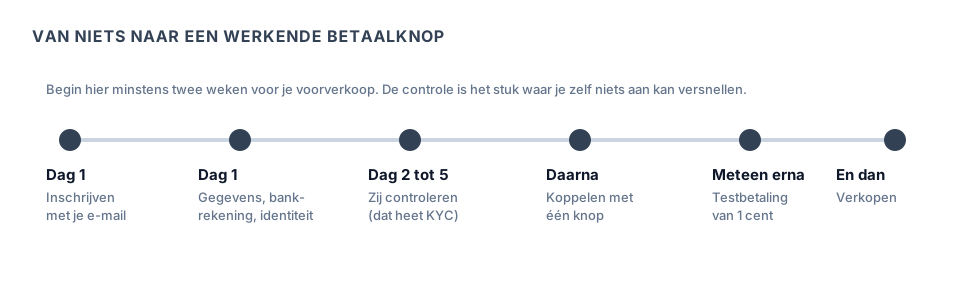
Everything happens in your browser, at stripe.com. Allow twenty minutes of typing and then one to five working days waiting for their check.
Note: Stripe is set up in English and many screens stay in English, even with a Dutch language setting. That is the price of an international provider. If you cannot get along with that, take Mollie.
What you need beforehand
- Your company number (KBO, KvK or the equivalent in your country).
- The official name and the official address of your organisation.
- The IBAN of a bank account in the name of your organisation.
- Your identity card or passport, as a photo or scan.
- Your date of birth and your address as a director.
- A mobile number. Stripe puts compulsory two-step verification on your account.
- The address of your ticket shop, to be found at the bottom of Settings → Organisation in Passavo, in the Sharing your shop block.
Step 1 — Signing up
- Go to stripe.com and click Sign in and then Create account, or go straight to Start now.
- Fill in your email address, your name and a password, and choose the country of your organisation. Note: that country determines which currency you are paid out in and which payment methods you get. You cannot simply change it afterwards.
- Confirm your email address via the link you are sent.
- Set up two-step verification. Stripe asks here for a mobile number or an authenticator app. Keep the recovery codes you are given somewhere outside your phone — without those codes and without your phone you cannot get back in.
You are now in the Stripe dashboard. At the top is a Test mode switch. For as long as it is on, you only see and do practice material in your dashboard. That switch has no effect on the payments made via Passavo: they are real as soon as your account is activated.
Step 2 — Activating your account
Look in the dashboard for Activate your account or Complete your business profile. Stripe then goes through a series of questions with you.
| What they ask | What you fill in |
|---|---|
| Type of business | Company, Nonprofit or Individual, according to your form |
| Business name | Exactly as in your official register |
| Business registration number | Your KBO or KvK number |
| Business address | The official address |
| Industry | Choose Events, Tickets or Entertainment |
| Business website | The address of your ticket shop |
| Product description | One sentence: what you sell tickets for |
| Bank account | The IBAN of your organisation |
| Statement descriptor | What your visitor sees on their bank statement |
Note on the statement descriptor: that field is short and appears literally on your visitor's bank statement. Put the name they recognise there — the name of your association, not an abbreviation nobody knows. An unrecognisable entry earns you disputes, and a dispute costs you money and your ticket.
With an association or company Stripe also asks about the directors and the ultimate beneficial owners, and for proof of identity. Photograph it flat, straight from above, without flash, with all four corners in shot.
Step 3 — Switching on Bancontact and iDEAL
This is the step most often skipped with Stripe. By default only card payments are on.
- In the Stripe dashboard go to Settings and then Payment methods.
- Look for Bancontact and click Turn on.
- Look for iDEAL and click Turn on.
- Check whether Apple Pay and Google Pay are on. Those come along by themselves with a card payment on a device that supports them.
Note: with Stripe, Passavo asks for card, Bancontact and iDEAL. If one of those methods is not on with you, Stripe refuses to open the payment page rather than leaving that method out. So switch both of them on, even when you think you do not need them. That costs nothing: you only pay per successful payment.
Step 4 — Waiting for the check
Stripe checks your details. Allow one to five working days. In the dashboard you see at the top whether anything is still missing; Stripe is fairly clear about that and names the document it lacks.
For as long as your account is not activated, it cannot accept payments. If you connect it anyway, a payment via Passavo only goes through after the activation.
In the meantime you can simply carry on in Passavo: products, prices, time slots and free registrations need no provider.
Step 5 — Connecting to Passavo
Go to Settings → Payments in Passavo and click Connect your Stripe account. You sign in at Stripe, you choose your account, you give permission, and you come back. See Connecting your payment provider.
Here too you paste no keys. Your account stays yours: you keep your own Stripe dashboard, your own payouts and your own contract with Stripe. The connection via Stripe Connect gives us access to your account; Passavo only uses it to start payments for you, look up their status and issue refunds. You withdraw it with Disconnect; the permission then also disappears at Stripe itself.
A new connection immediately becomes the active provider for your ticket shop.
Commonly made mistakes
Choosing the wrong country when signing up. That determines your currency and your methods, and it cannot simply be changed afterwards. Choose the country your organisation is registered in.
Not switching on Bancontact and iDEAL. See step 3. This is the number one cause of "my payment page does not open" with Stripe.
Getting stuck in test mode. If the Test mode switch in your Stripe dashboard is still on when you look at your figures, you see your practice orders and not your real ones. Switch it off.
Not keeping your recovery codes. A new phone without recovery codes means a long conversation with Stripe's help desk.
An unrecognisable statement descriptor. See step 2.
What if …
What if I do not see Bancontact in my ticket shop?
Look in your Stripe dashboard under Settings → Payment methods to see whether Bancontact is on. If it is off there, the payment page does not even open at all: Passavo always asks for card, Bancontact and iDEAL together. See step 3.
What if my visitor pays in another currency?
With another currency Stripe charges a conversion surcharge on top of the ordinary rate. If you sell in euros to euro visitors, that does not come into it.
What if I already have a Stripe account for something else?
Then you connect that one. At the permission screen you choose which account you are connecting; look carefully that you designate the right one when you have several.
What if my account goes restricted?
Then Stripe asks for extra information and blocks your payouts in the meantime. That happens when your turnover suddenly rises sharply or when a document has expired. Supply what is asked for; your sales usually simply carry on.
Frequently asked questions
What does Stripe cost? According to their price list, no set-up cost and no monthly amount; you pay per successful payment. The current rates are on Stripe's own pricing page. See also Which payment provider do you choose?
Is Stripe better than Mollie? Not better, different. Stripe is stronger outside the Benelux and is in English. Mollie is simpler and Dutch-language. For a Belgian association with Belgian visitors, Mollie is usually the calmer choice.
Can I connect both Stripe and Mollie? Yes. One of them is the active provider for your ticket shop; you designate it with Use this provider. Your visitor only sees the methods of that one.
Where do I see when I am paid out? In your Stripe dashboard under Balances or Payouts. There you choose yourself how often you are paid out, for example daily, weekly or monthly.
Does that mean my data is in the United States? Stripe is an American company with an Irish European entity. What that means for your privacy statement is in Privacy and terms.
Updated on 2026-09-23
Read next
-
Payments and payouts
Creating a Mollie account, step by step
From signing up to approved — which details Mollie asks for, why, and what you do while yo...
-
Payments and payouts
Applying for Bancontact Pro (the former Payconiq)
How you get a merchant key via your bank so that you can accept the Belgian QR app of your...
-
Payments and payouts
Which payment provider do you choose?
Mollie, Stripe and Bancontact Pro side by side — which payment methods, where to find thei...
Still stuck? Write to us at support@passavo.eu